
How to Change Your Desktop Background in Windows 10 and 11 (Step-by-Step)
1. Introduction
Briefly explain why customizing the desktop background is helpful or fun. Mention that this guide is beginner-friendly.
Example:
Tired of staring at the same old Windows wallpaper? Whether you’re on Windows 10 or 11, changing your desktop background can give your computer a fresh new look. In this quick tutorial, we’ll show you how to personalize your screen with your favorite image, solid color, or even a slideshow.
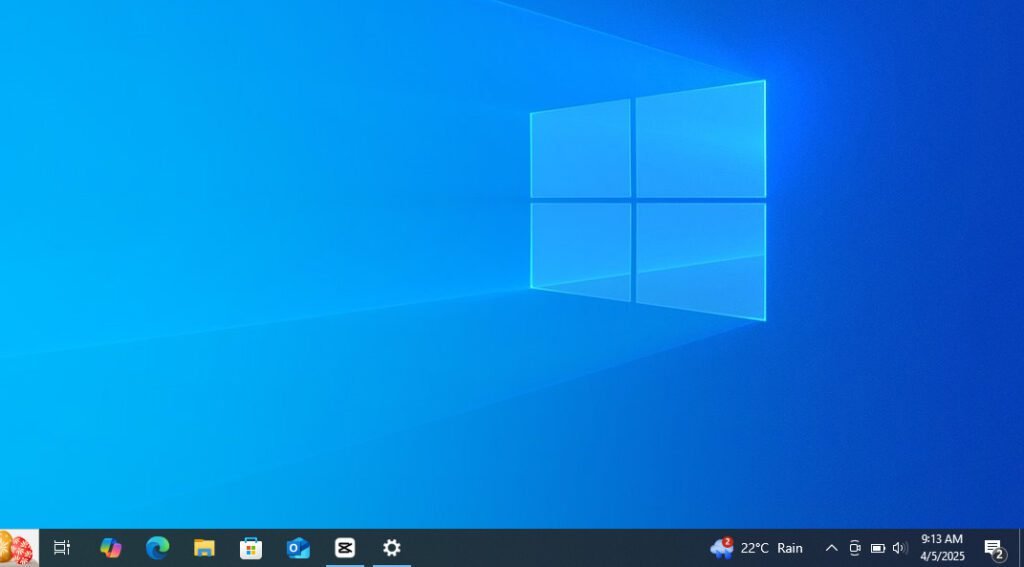
2. Step-by-Step Guide
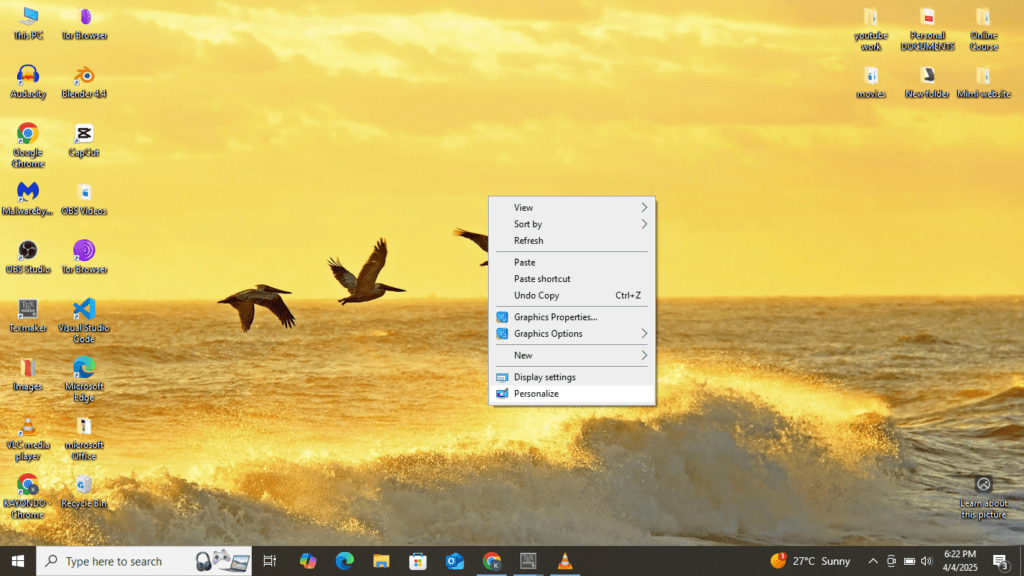
Step 1: Right-click on your desktop
Click anywhere on your desktop, then choose Personalize from the dropdown menu.
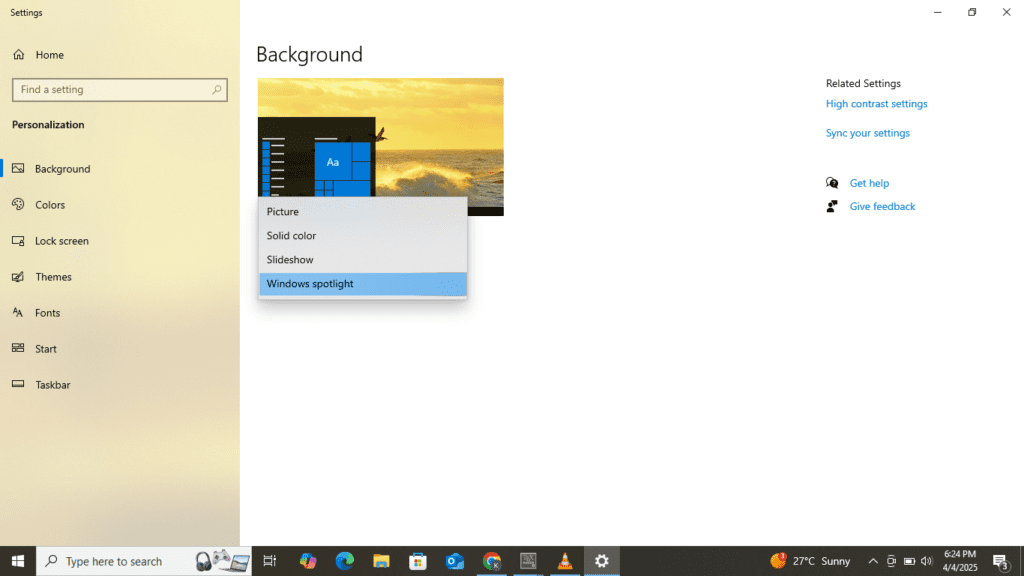
Step 2: Choose Background Settings
Under the Background section, you’ll see three options:
- Picture (choose a static image)
- Solid Color (simple and clean)
- Slideshow (rotating images)
Step 3: Choose or Upload Your Image
Click Browse to select an image from your computer, or use the default ones provided by Windows.

Step 4: Adjust the Fit
Use the Choose a fit dropdown to set how the image fills your screen (Fill, Fit, Stretch, Tile, Centre, Span)

3. Video Tutorial
Want to watch the steps in action? 🎥 Here’s a short video guide from our YouTube channel
4. Extra Tips (Optional but Useful)
- Use high-resolution wallpapers for better quality
- Save time by using the slideshow feature for variety
- Download wallpapers from trusted sites like Unsplash or Pexels
Customizing your desktop is a simple way to make your PC feel more personal and inspiring. Try it out and let us know your favorite wallpaper style in the comments below!
💡 Subscribe to our YouTube Channel for more tech tutorials, or explore more guides on our blog.

You may also like


Download IJMA UCE MOCK Past Papers 2025 – All Subjects (Free PDF)